Getting started
Introduction
What Eizport does, how it fits into WordPress's own export and import, and where to go next.
Eizport moves WordPress content between sites with everything that makes it work: the media files, the settings that point to the content, and each post’s content as a readable file. It builds on the tools WordPress already has — Tools → Export and the WordPress Importer — instead of replacing them.
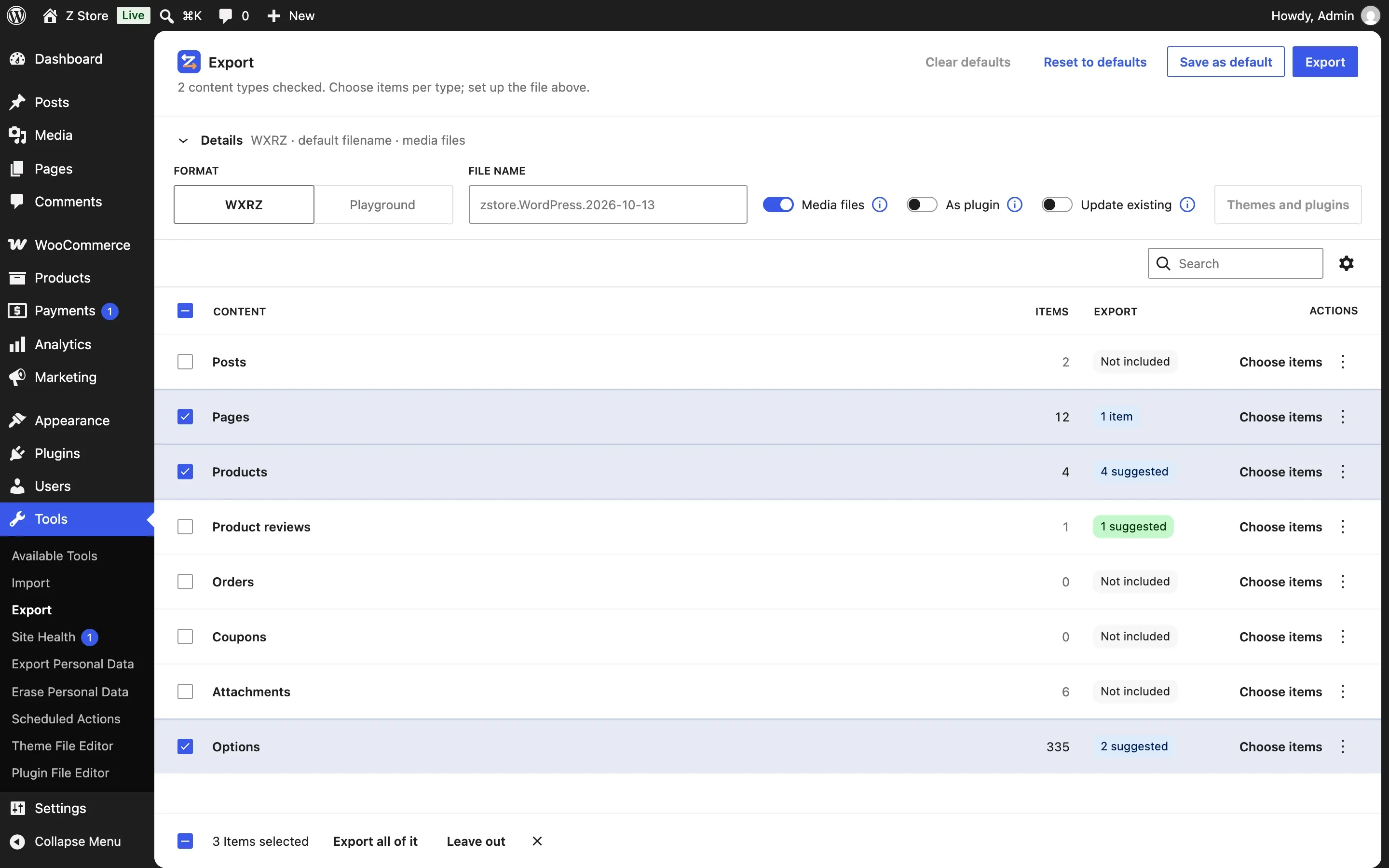
What changes
| WordPress alone | With Eizport |
|---|---|
| One content type, or everything | Several types at once, each whole or by items — and what they use comes up as a suggestion (the products a page shows, the settings that point to it, product reviews) |
A WXR file (.xml) that points to media on the old site |
A bundle (.wxrz or .zip) with the media files inside |
| The importer downloads every image from the old site | Media comes from the bundle: the old site can be offline |
| Settings stay behind | Options go along: the ones that point to the items (homepage, shop…) are suggested and mapped to the new IDs; add any other one by one |
| Content inside XML | Each post’s content as post_content/<slug>.html |
| — | A WordPress Playground .zip that boots a site with the content, theme and plugins |
| — | As plugin: a plugin .zip that imports itself on the other site with one click (as plugin) |
| The importer’s own look | Tools → Import opens the WordPress Importer directly, dressed like the Export screen |
| — | Every step as an ability (Abilities API, REST, MCP) and a WP-CLI command |
Not a full migration — on purpose
Eizport doesn’t copy the whole database, and that is the point:
- A full-site migration (a database dump, a migration plugin) moves everything: transients, logs, sessions, spam, the tables of plugins removed years ago, users, the old site’s URLs — and overwrites the site it lands on. Cleaning up afterwards is the hidden cost.
- WordPress’s export is clean but leaves gaps: the media files stay on the old site (the importer must download them, so it must be online), settings don’t travel at all, the homepage stops being the homepage, and images used in content without being attached are left behind.
The plugin takes what you choose and everything it depends on: the items, their media files, the media their content uses, the settings that point to them (with IDs remapped on import) and the settings you pick — and merges them into the target site. Site URLs, users, keys, roles, active plugins, transients and caches never go.
Use a full migration to clone or move a whole site to new hosting. Use Eizport to move content: a section, a store’s catalog, a set of pages, a homepage with its settings, a demo.
How it fits
Tools → Export ──► eizport/export ──► .wxrz / .zip / .xml / Playground .zip
                                          │
Tools → Import → WordPress ◄──────────────┘ (or eizport/import, or wp eizport import)- Exporting happens on the new Export screen (or the classic one, if you prefer) and through the
eizport/exportability. Both run the same code:export_wp()with a narrowed query, plus the bundle around it. - Importing uses the WordPress Importer — or the file exported as plugin runs it with one click. The plugin unpacks the bundle first, answers the importer’s media downloads from it, puts the
.htmlcontents back into the WXR, and sets the options when the import ends.
Requirements
- WordPress 7.0 or later (the Export and Settings screens use WordPress’s admin screen framework).
- PHP 7.4 or later, with
zlib(for.wxrz) andZipArchiveor core’s PclZip (for.zip). - The WordPress Importer plugin to import (WordPress offers to install it from Tools → Import).
Next
- Install the plugin and make your first export.
- Learn the Export screen, or go straight to the file formats and the abilities.